Firewall and security groups
On VM WAN you add your own firewall rules or insert security groups created under Datacenter → Security groups.
Before you begin
- VM with a WAN (
net0) interface. - Admin or Superadmin access to the project.
Steps — rule on the VM
- Open
VM → Firewall. - Set Global Status to On, Policy In to DROP, and click Apply if the firewall is off.
- Click Add rule.
- Fill in the Create firewall rule dialog (see below) and click Add.
- Check rule order in the table — within each direction, rules apply top to bottom.
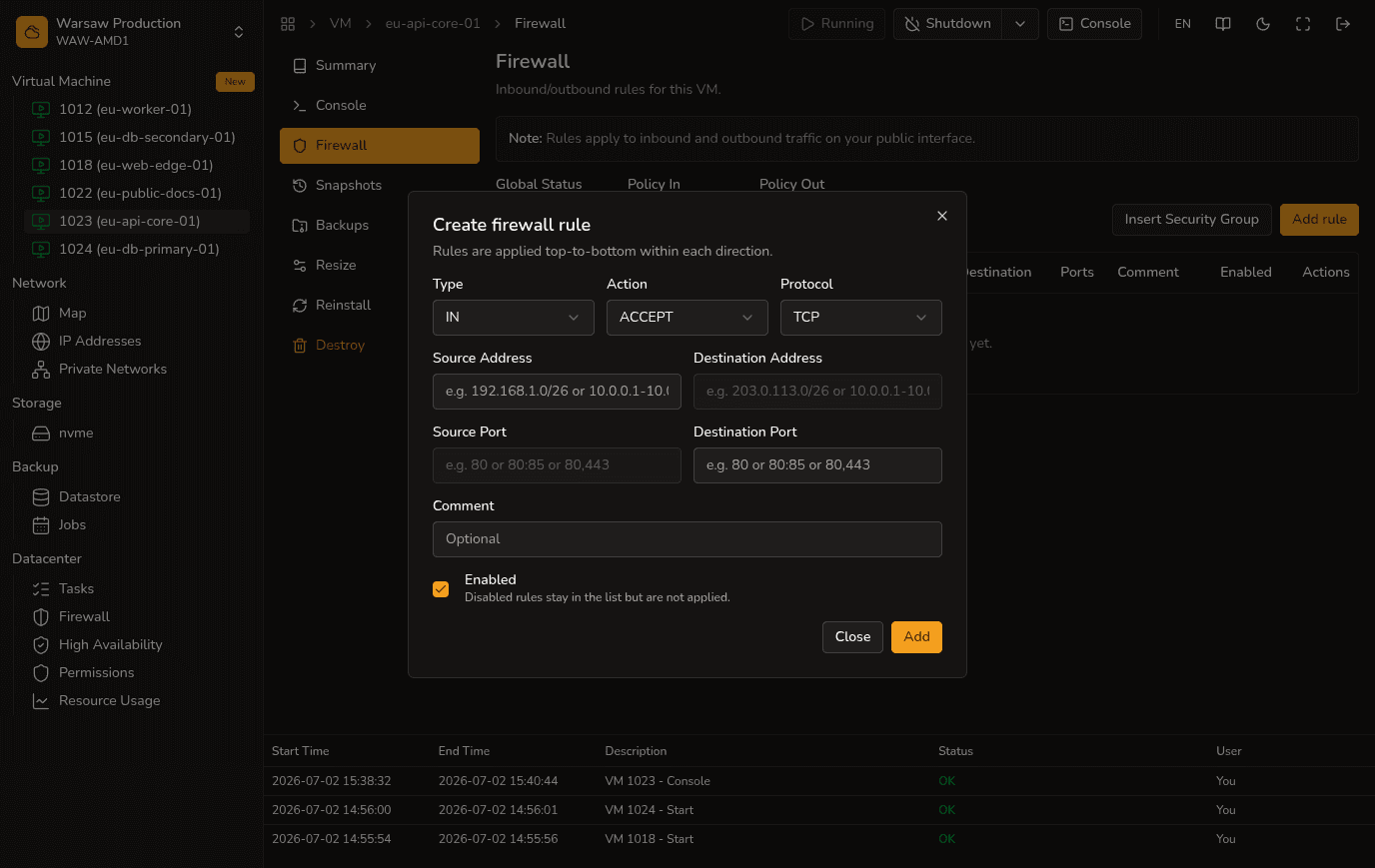
Fields in Create firewall rule
- Type — IN (traffic to the VM) or OUT (traffic from the VM).
- Action — ACCEPT (allow) or DROP (deny).
- Protocol — TCP, UDP, or ICMP.
- Source Address — sender address or CIDR; active for IN, greyed out for OUT.
- Destination Address — recipient address or CIDR; active for OUT, greyed out for IN.
- Source Port — source port (e.g.
80,80:85,80,443); usually empty for IN, fill in for OUT. - Destination Port — destination port; fill in for IN (e.g.
22for SSH), usually empty for OUT. - Comment — optional note.
- Enabled — disabled rules stay in the list but are not applied.
Security groups
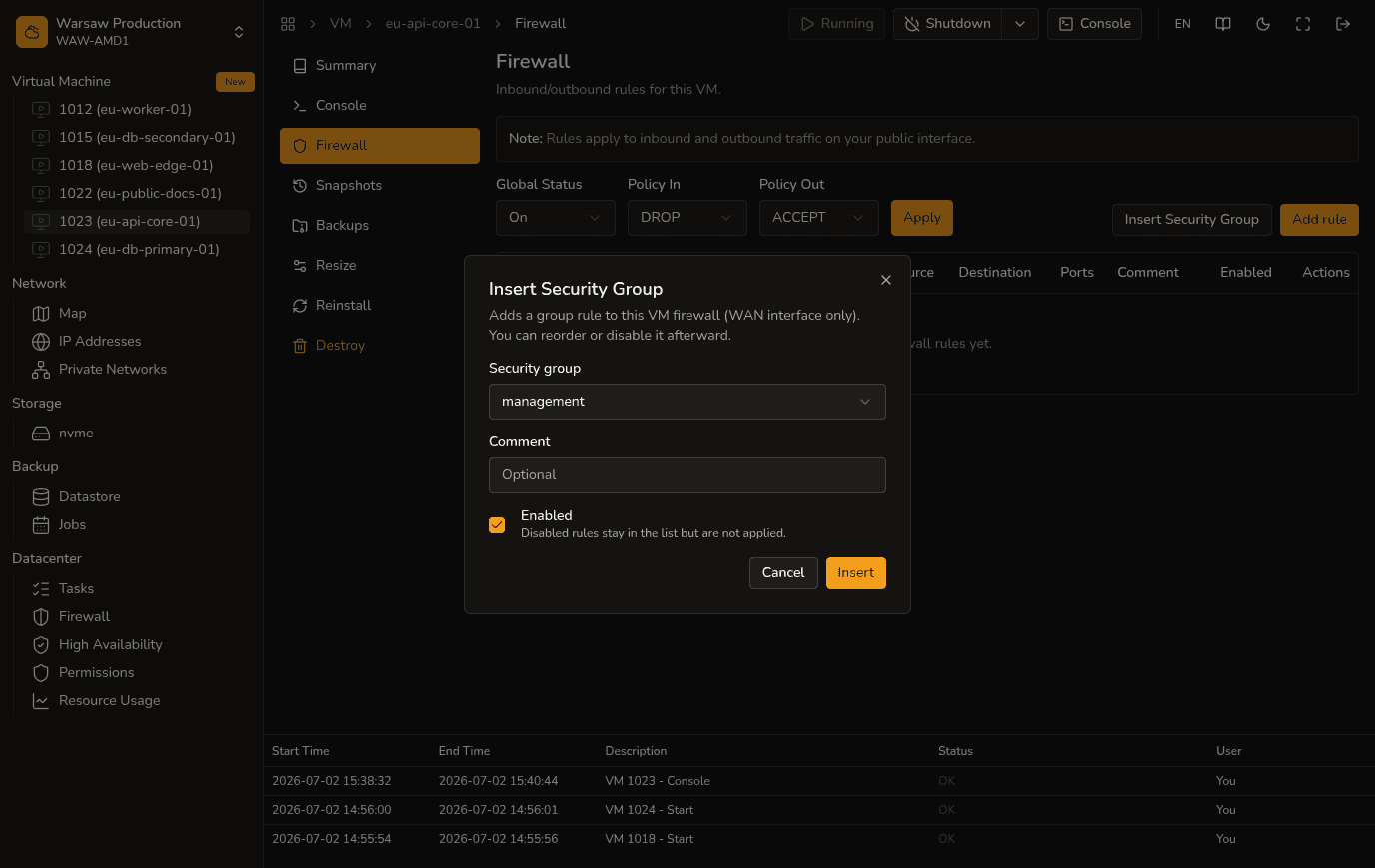
To reuse the same rules on many VMs, create a security group under Security groups, then on the VM firewall click Insert Security Group and choose the group.
Watch out
- Portal VM firewall applies to WAN (
net0) only. LAN interfaces are not filtered by this firewall. - CIDR in rules is limited to /26 maximum.