Backup jobs
Create and maintain scheduled VM backup jobs.
Before you begin
- Admin or Superadmin access to the project.
- VMs you want to protect are listed in the project.
Steps
- Open
Backup → Jobs. - Click Create backup job (or edit an existing job).
- Fill in the Create backup job dialog (see below).
- Select VMs under Virtual machines and click Create.
- Check the warning list for VMs without a backup job.
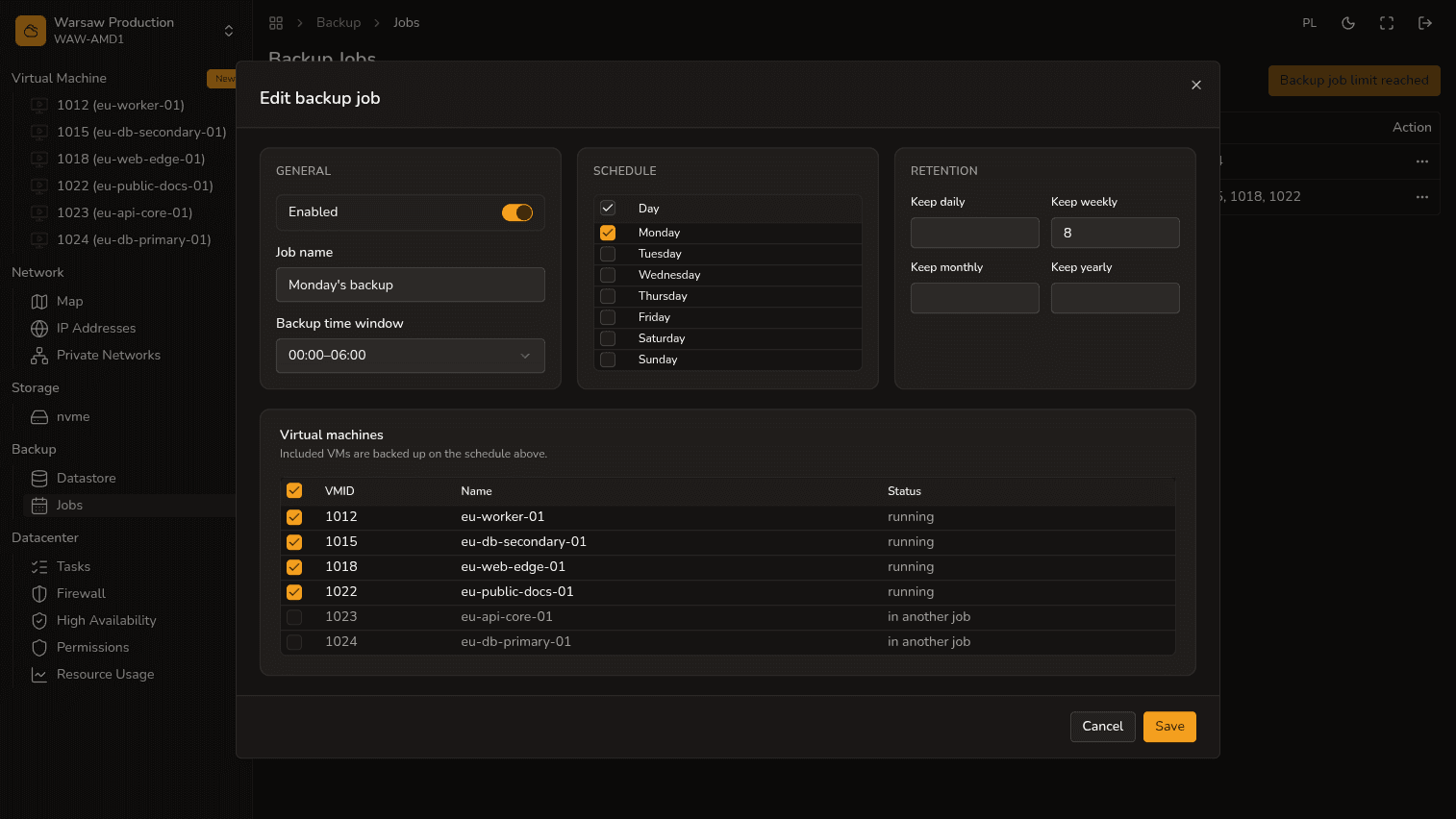
Fields in Create backup job
General
- Enabled — turns the job on or off without deleting the schedule.
- Job name — short label in the portal (e.g.
Production VMs). - Backup time window — when a backup may start (currently 00:00–06:00).
Schedule
- Weekdays — which days the job may run (at least one day required).
Retention
- Keep daily, Keep weekly, Keep monthly, Keep yearly — how many copies to keep at each tier (see below). Empty or 0 disables that tier.
Virtual machines
- Project VM table — select machines covered by this job. A VM already in another job is greyed out (in another job).
Retention — how it works
Retention controls how many backup copies stay on the datastore. Older copies are removed automatically.
- Keep daily — how many recent day-level copies to keep (e.g. 7 ≈ one week of daily restore points).
- Keep weekly — additionally keep one copy per week (e.g. 4 ≈ about a month of weekly history).
- Keep monthly / Keep yearly — longer history; set only when you need older copies.
How to set it: for a typical VM, keep the defaults 7 daily and 4 weekly. For test environments, 3 daily and 0 weekly is often enough. For production with longer history, raise daily or add monthly (e.g. 3). Form limits: daily up to 90, weekly 26, monthly 12, yearly 2.
The more copies you keep in retention, the more storage backups use and the higher retention cost can be.
Backup storage cost
Backups on PBS are incremental and deduplicated. In Backup → Datastore you see two sizes:
- Logical — total data size in the backup index.
- On-disk — actual disk usage after deduplication and compression.
Billing is hourly based on on-disk GiB on the project datastore, not logical size. You can also check usage in Datacenter → Resource usage (backup column: logical / on-disk).
Illustrative example
A test VM with a 100 GiB disk. About 5% of data changes each day (~5 GiB). Daily backups, 7 daily retention (default):
| Stage | Rough estimate |
|---|---|
| First backup (full) | ~100 GiB on the datastore |
| Each following day | ~+5 GiB of changed data, not another full 100 GiB |
| After ~7 days | on the order of ~130 GiB on-disk (100 + 6×5), not 7×100 GiB |
| With keep daily = 30 | on the order of ~245 GiB (100 + 29×5) — much higher storage cost |
This is a simplified example: real on-disk usage depends on how many blocks repeat between copies. Always check on-disk in the datastore before raising retention.
Watch out
The default project backup job limit is 1. A backup job does not replace restore testing.