Reverse proxy
You can use Cloud Gateway as a reverse proxy (powered by Caddy), which will accept HTTP and HTTPS traffic and forward it to your backend servers. It automatically obtains and renews free SSL certificates from Let’s Encrypt for your domains.
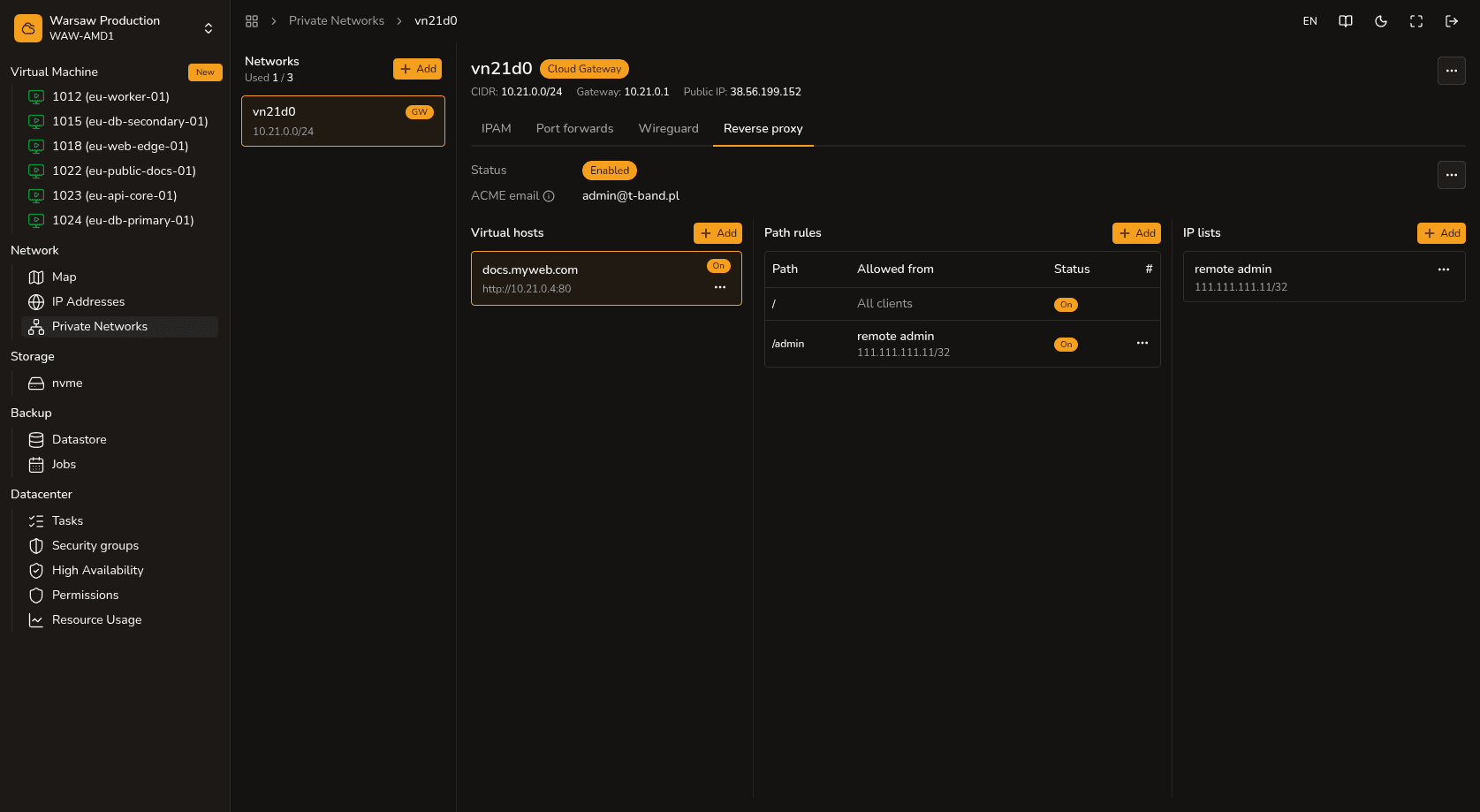
Steps
- In your DNS provider’s control panel, create an A record pointing your domain to the public IP address of your Cloud Gateway.
- In the hostd portal, open the Reverse proxy tab in your private network’s settings and enable the service.
- Add your domain name (hostname) and specify the private IP address and port of your target VM (backend).
- Click Save to save the configuration.
- Try opening your domain in a browser via HTTPS. If the A record is configured correctly, the system will automatically generate an SSL certificate during the first visit to the site.
Watch out
Managing direct DNS records (A records) for your domain is handled entirely on the side of your DNS provider. Please note: enabling the Reverse proxy service completely reserves TCP ports 80 and 443, as well as UDP port 443 on the Cloud Gateway, preventing them from being used for standard port forwarding.
Next steps
- PTR / reverse DNS — configuring PTR records.
- Port forwarding — direct port forwarding.