SSH and console
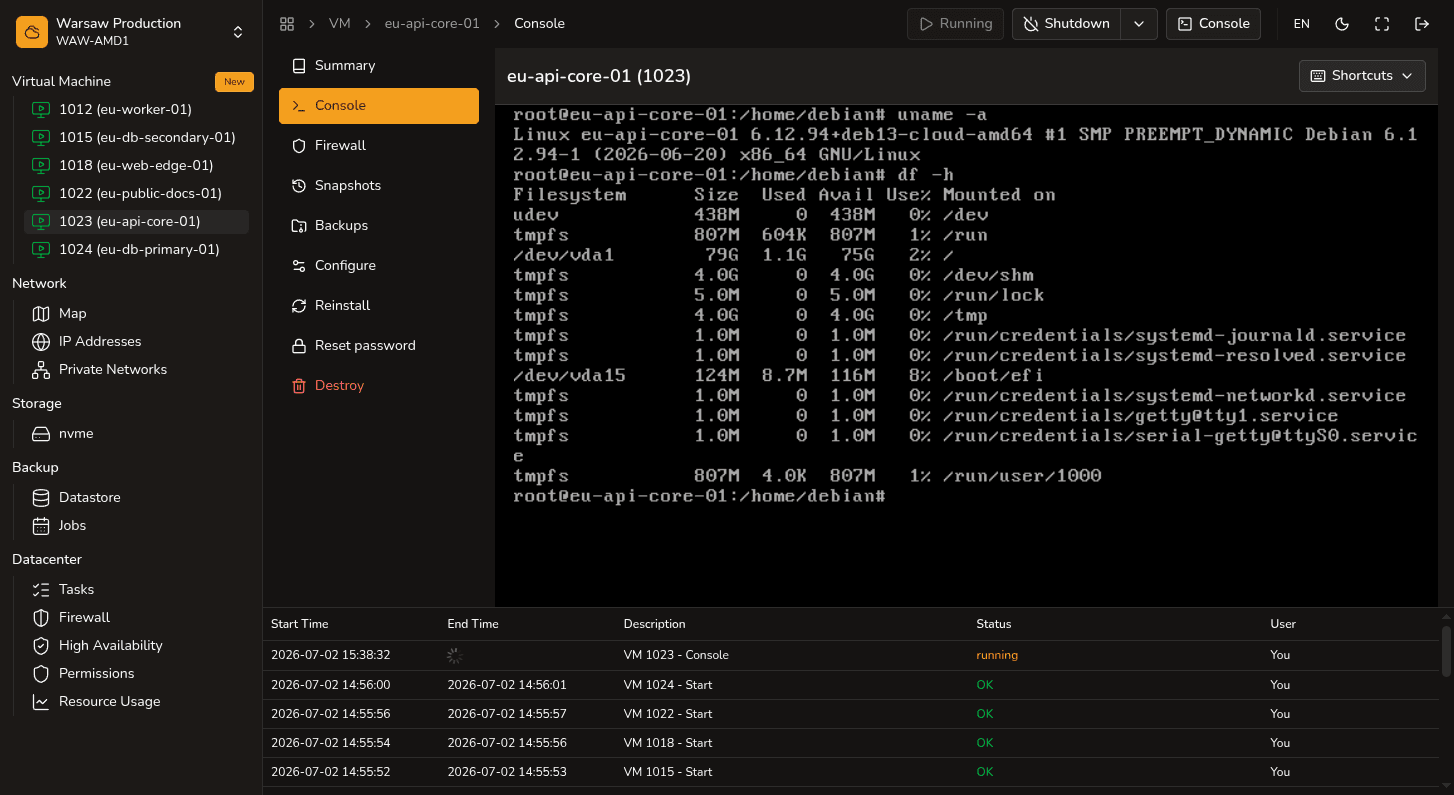
To manage your virtual machine, you can connect to it over the network via SSH (primary method) or use the noVNC web console built into the portal (emergency method if the network is unavailable).
Before you begin
- The virtual machine must be in the running state.
- Make sure you remember the username you specified during the VM creation or reinstallation.
- If connecting via SSH over the internet (WAN): the machine must have a public IP address, and you must have the corresponding private SSH key configured on your computer.
Connection methods
1. Connecting via SSH (Recommended)
Open a terminal on your computer and execute the connection command (if your private key is saved in the default path ~/.ssh/id_rsa or ~/.ssh/id_ed25519, the -i parameter is not required):
ssh username@public_ipIf you are using a key with a custom name or path:
ssh -i ~/.ssh/id_rsa username@public_ip2. Connecting via noVNC web console
If the network is disabled on the machine, ports are blocked, or you are experiencing issues with SSH key configuration:
- Go to your VM settings and open the
VM → Consoletab (or click the Open Console in New Window button). - Log into the system by entering your username and the password you specified during VM creation or system reinstallation.
Watch out
On all our standard Linux images, SSH password authentication is disabled by default. If you try to connect via SSH using a password, you will receive an access error (Permission denied). To enable password login, please refer to our dedicated guide.
Next steps
- SSH password login — how to allow password login over SSH.
- Firewall and security groups — configuring firewall permissions.