High Availability (HA)
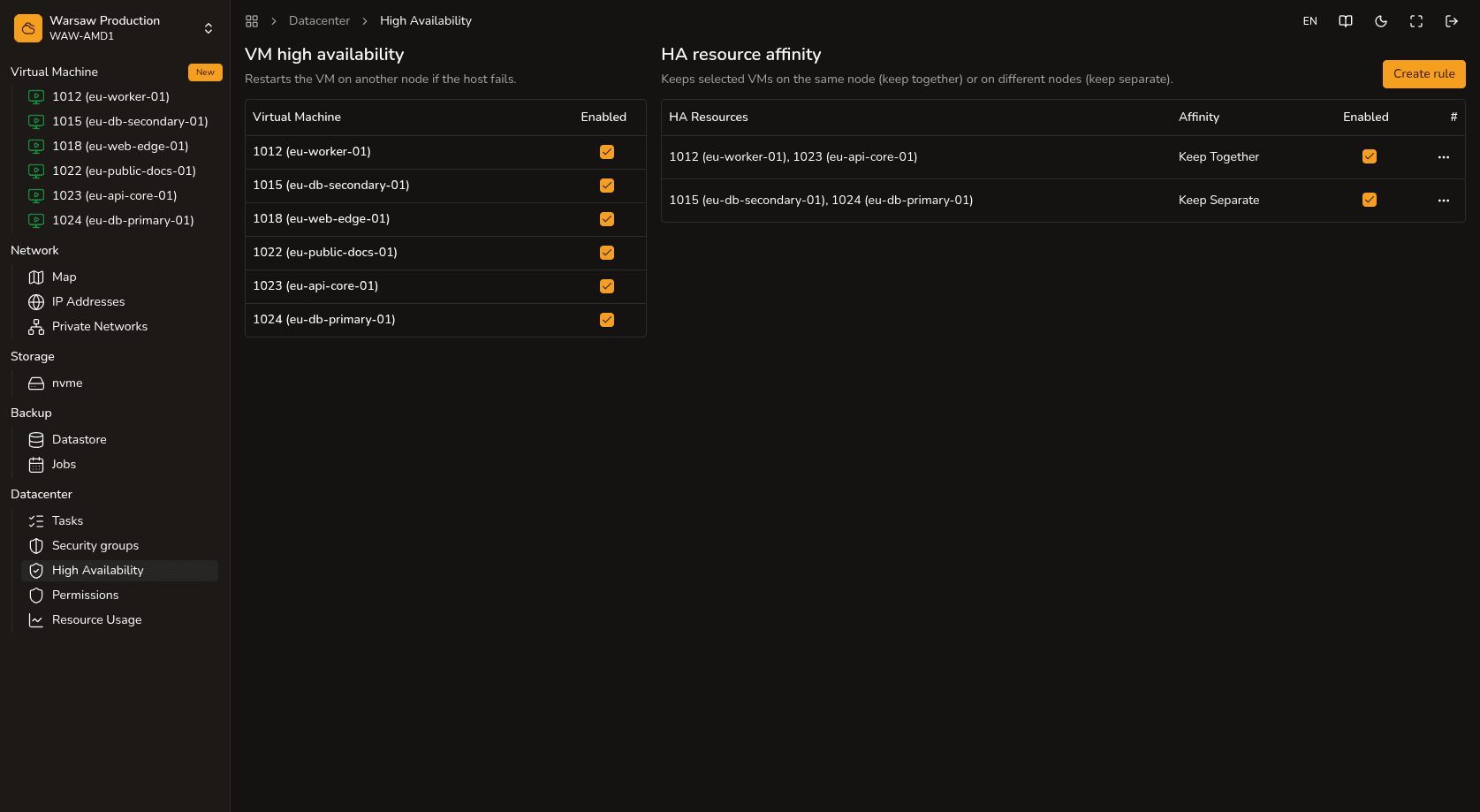
High Availability (HA) mode automatically protects your virtual machines against hardware failures. If the physical server hosting your machine fails, the platform will independently restart it on another working server.
Steps
- Navigate to the
Datacenter → High Availabilitysection. - Toggle the HA switch for the desired virtual machine.
- If necessary, create an affinity rule to define whether certain VMs should run on the same physical server or must run on different ones.
- You can always check the current HA status on the Summary tab in the settings of a specific VM.
Watch out
- Restarting a virtual machine on another server during a failure typically takes up to one minute. Please note that this is a hardware reboot (similar to powering on after a power outage), so it does not protect against internal failures of the operating system itself.
- The High Availability feature is provided entirely free of charge — you only pay the standard hourly cost of your machine’s vCPU and RAM.
- Each affinity rule can combine between 2 and 3 VMs. A single virtual machine can belong to only one placement rule.
Next steps
- VM backups and restore — additional data protection via backups.
- Platform capabilities — detailed overview of the platform’s architecture and hardware.