Virtual machines
Resize a VM
Change VM CPU class, vCPU, RAM, disk, and interfaces.
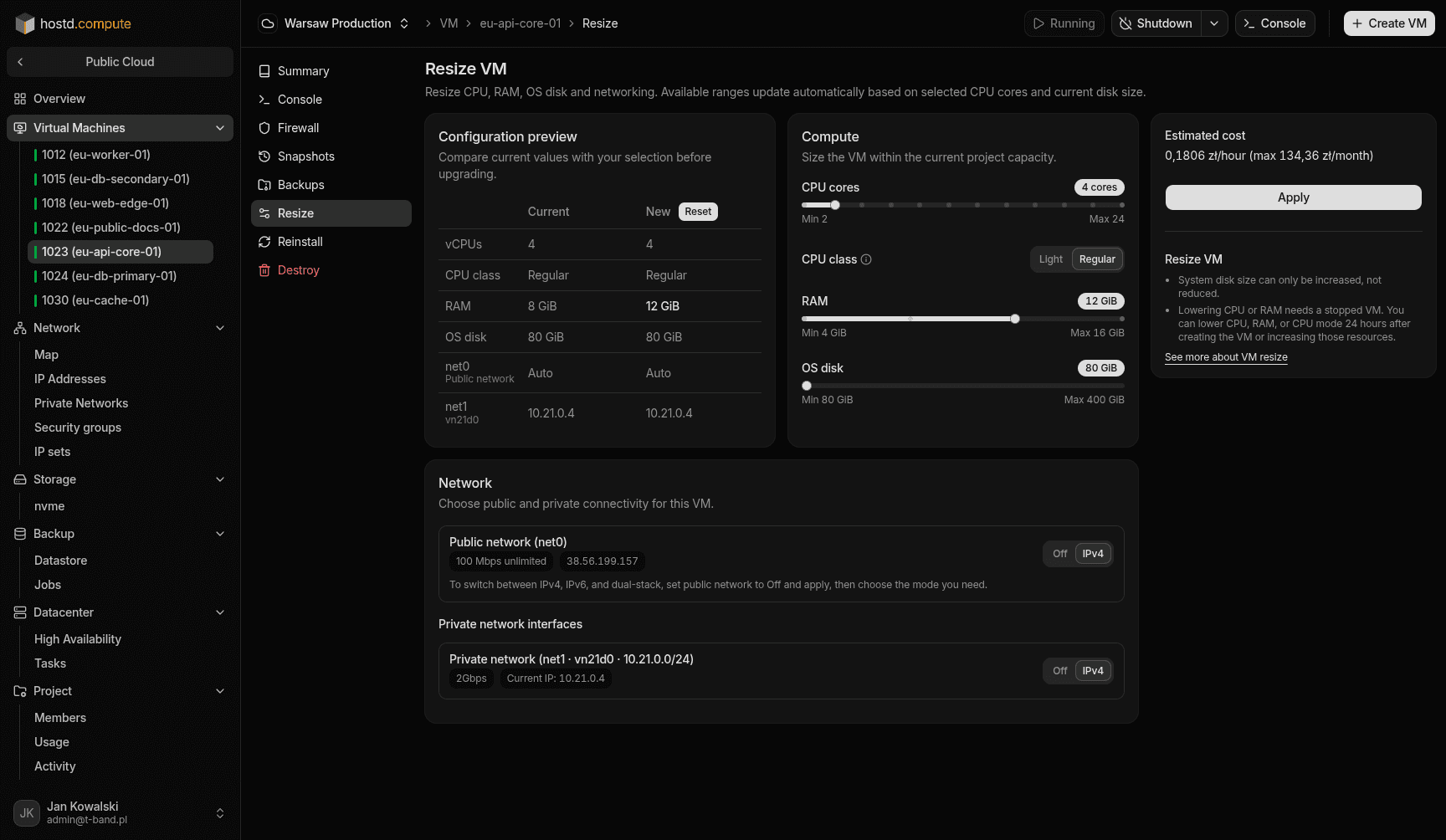
Change CPU class, vCPU, RAM, disk size, and network interfaces.
Before you begin
- Admin or Superadmin access to the project.
- While the VM is running, you can increase vCPU, RAM, and OS disk, change CPU class, and edit WAN/LAN interfaces.
- To lower CPU or RAM: VM must be stopped.
Steps
- Open
VM → Resize. - Change CPU class, vCPU, and RAM within available tiers.
- Grow the OS disk if you need more space.
- Change WAN or private NICs and review the access impact. To change the public IP: turn WAN off, save, turn WAN on again, and choose Auto or a reserved address (no VM reboot).
- Click Save.
Watch out
- You can lower vCPU, RAM, or CPU class 24 hours after you create the VM or increase those resources. Lowering vCPU/RAM also needs a stopped VM.
- OS disk can only grow; it cannot shrink.
- Disk size sets a floor for vCPU: one core carries at most 100 GiB, so a 400 GiB disk keeps the VM at 4 vCPU or more.
- CPU class can be changed while the VM is running.