Virtual machines
Reinstall a VM
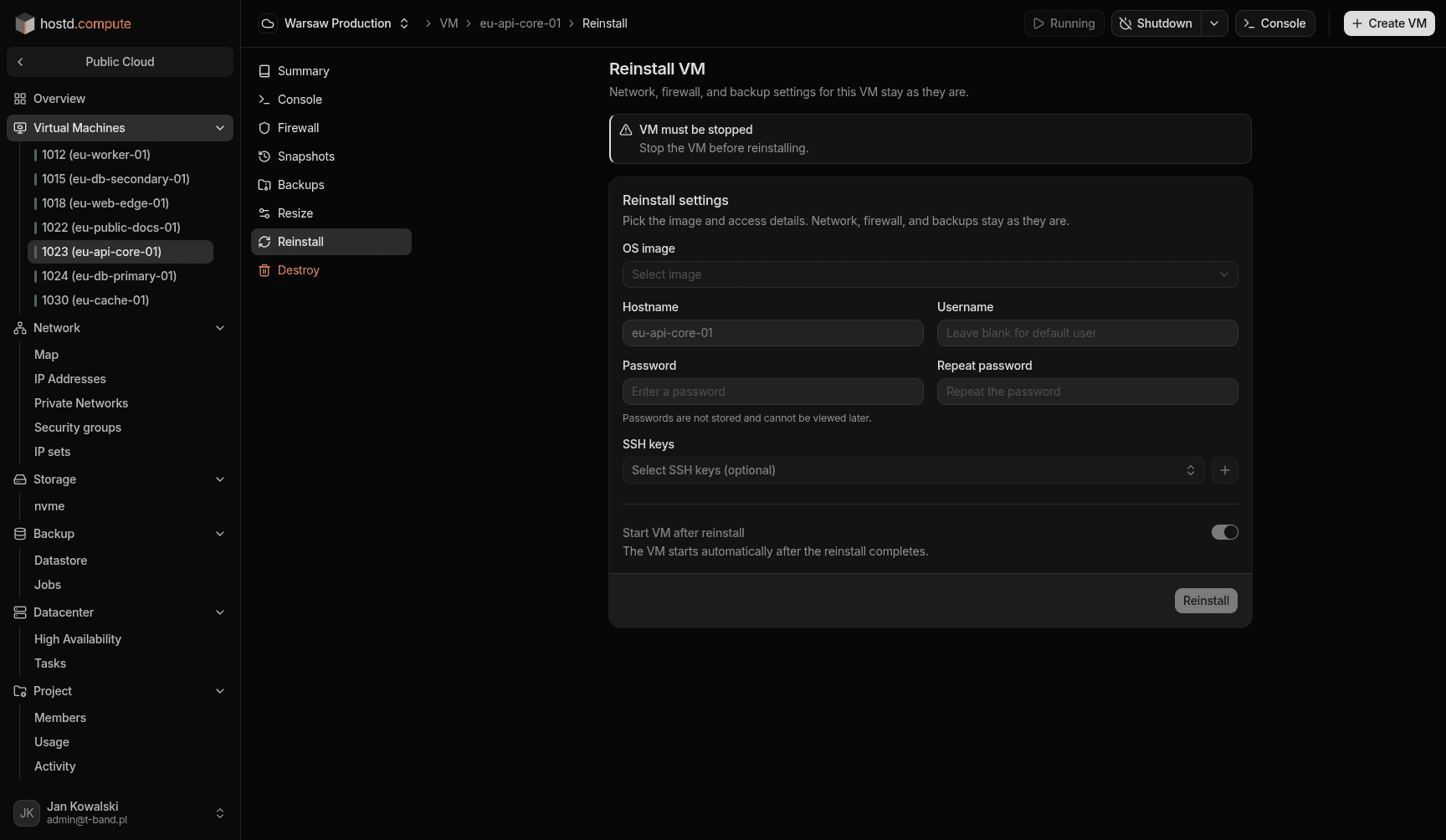
Reinstall the VM operating system from an OS image.
Wipe the system disk and reinstall the OS from a portal image.
CPU, RAM, OS disk size, network interfaces, and their MAC addresses stay unchanged.
Before you begin
- VM must be stopped.
- If the system disk has data you need to keep, make sure backups exist in
VM → Backups.
Steps
- Stop the VM.
- Open
VM → Reinstall. - Choose an OS image, hostname, and username, and set a password. We do not store passwords – you cannot view it in the portal later.
- Add SSH keys.
- Run reinstall and optionally start the VM after completion.
- Enter the code from your authenticator app, or the code we send to your email if two-factor authentication is off. The confirmation lasts 15 minutes.
Watch out
- Reinstall deletes all data on the system disk.
- Reinstall removes the VM snapshot if one exists.