Backup
Datastore
Viewing saved backups, their sizes, and restoring individual files.
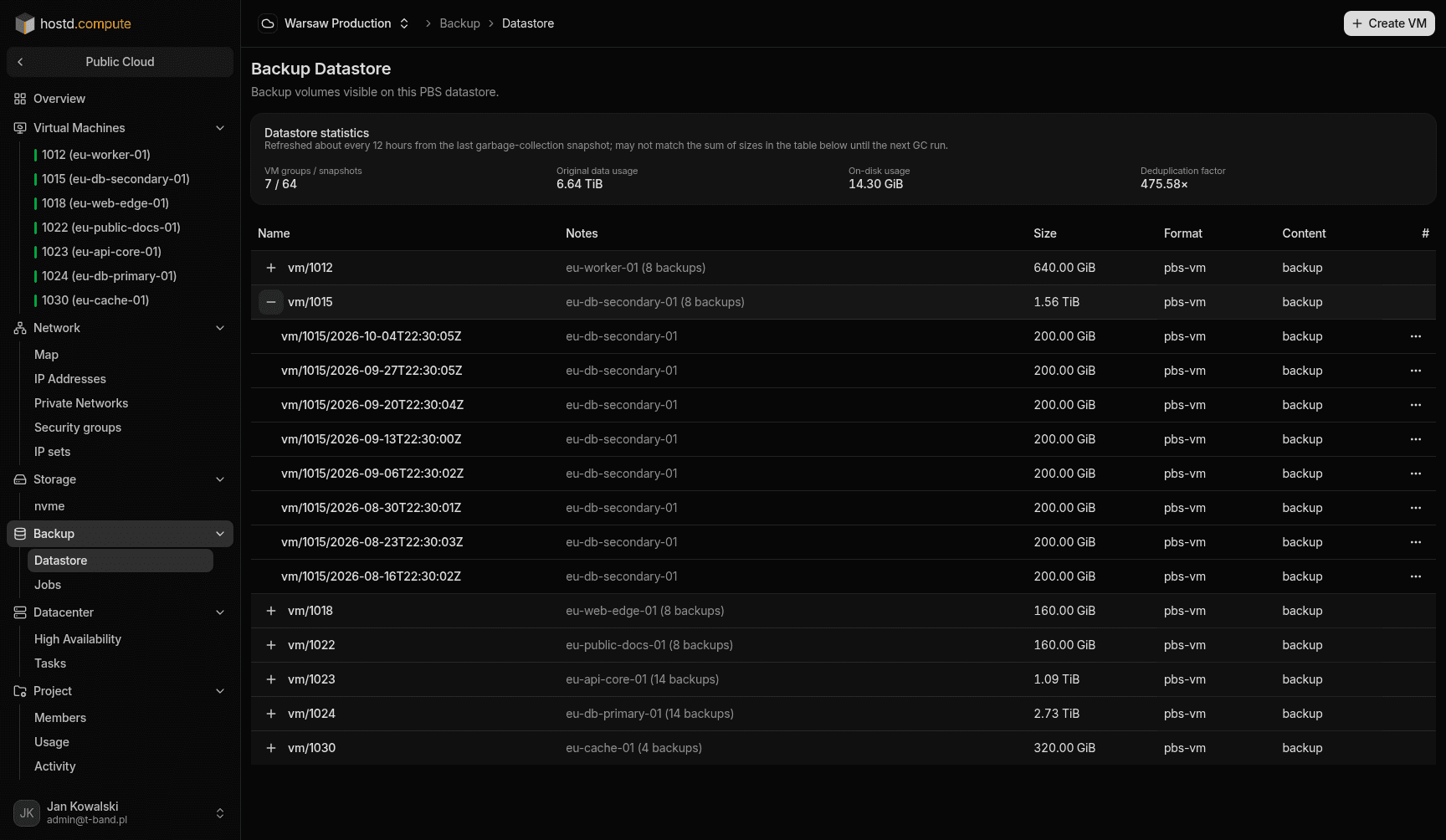
In the Datastore section, you can inspect existing backups, check how much space they occupy, and restore individual files.
Steps
- Open the
Backup → Datastoresection. - Find the relevant virtual machine in the list.
- Expand it to see specific backup copies (volumes). You can check their logical size, actual on-disk size, and creation date.
- Use File restore on a volume to browse and download individual files (without a full VM restore).
Watch out
Backups cannot be deleted manually. Old backups are removed by the retention of the backup job, and all backups of a VM are deleted together with it. Full VM restore is on VM → Backups; this page is for viewing and file restore.